 PDF Lover
Excel to PDF without cutting off columns
A spreadsheet has no page edges until you print it. When it becomes a PDF, anything wider than the paper moves to another page.
What the problem looks like
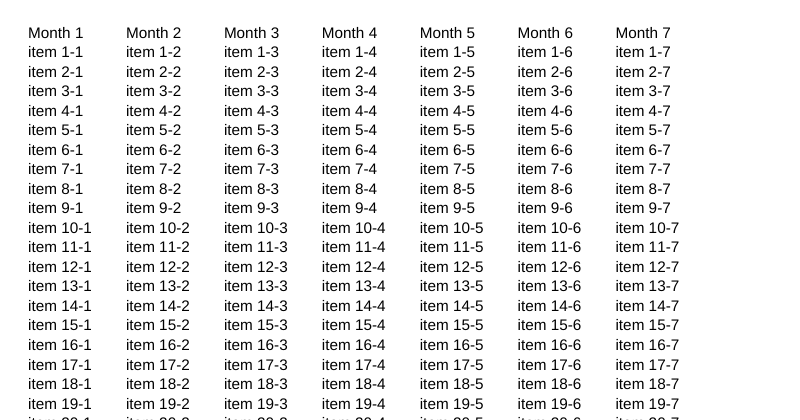
We made a test workbook with 14 columns and 30 rows, left the page setup at A4 portrait, and converted it here. The result had two pages: the first stopped after column 7 and the rest followed on the second.
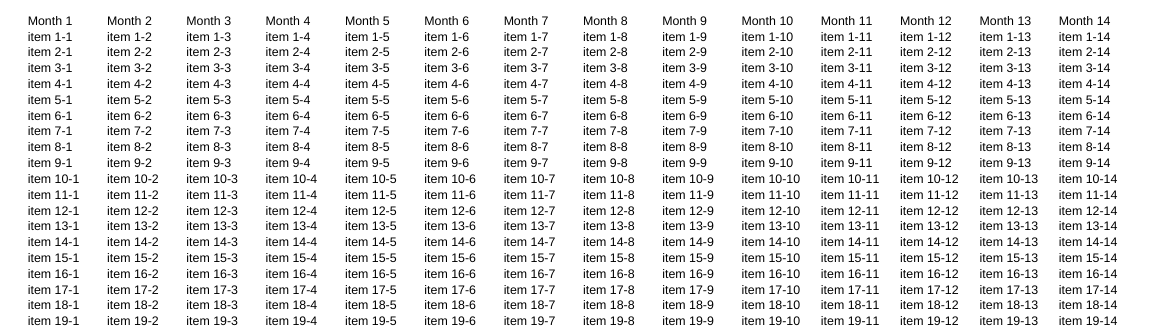
We then saved the same data with landscape orientation and scaling set to one page wide. It came out as a single page with all 14 columns.
The converter reads the page setup stored inside the file, so the fix happens in your spreadsheet before you upload, not on this site.
Set it up in Excel
- Open the Page Layout tab.
- Choose Orientation > Landscape.
- In Scale to Fit, set Width to 1 page and leave Height on Automatic, so long sheets can still run to several pages.
- Check the result with File > Print, then save the workbook and convert the saved file.
In LibreOffice Calc the same settings are under Format > Page Style, on the Page and Sheet tabs.
When one page wide makes the text too small
Scaling shrinks everything, including the text. If a sheet has dozens of columns, try these instead:
- Narrow the margins.
- Hide columns the reader does not need.
- Set a print area around the part that matters (Page Layout > Print Area).
- Split the table across pages on purpose, and repeat the label column on each page with Print Titles.
Other things to check
- Gridlines are not printed unless you turn them on or add cell borders. Our test pages above have none.
- Header rows can repeat on every page through Print Titles, which makes long tables readable.
- Every sheet counts. A workbook with several sheets can produce more pages than you expect, so remove or hide scratch sheets and check the page count.
- CSV files hold no page setup at all. Open them in a spreadsheet, set up the page, and save as .xlsx first.
Workbooks with several sheets
We converted a workbook with three sheets, the middle one hidden. The PDF had two pages: the first and third sheets, each starting on its own page. The hidden sheet was not included.
That gives you a simple way to control the output: hide the working sheets, or better, delete them from a copy of the file. Deleting is safer when they hold data the reader must not see.
Print areas are respected
In another test, a sheet had data in four rows and four columns and a print area covering only the first two of each. The PDF contained just those four cells. This is useful for sending a summary block, and a trap if an old print area is still set: the PDF will silently miss rows you added later. If something is missing, clear the print area under Page Layout > Print Area > Clear Print Area and convert again.
Before you send it
- Count the pages. An unexpected extra page usually means a stray value or formatting far away from the table.
- Look for columns showing
###, which means the column is too narrow for the number. Widen it and convert again. - Check totals on the last page against the spreadsheet.